Application Keys
Create the keys that call the Mergify API, grant them permissions, and revoke them.
An application key lets a script, an agent or a CI job call the Mergify
API for an organization, with no one signed in. The organization’s
Owners manage every key, and CI Admins only CI
keys. Every key created, changed or deleted is recorded in
the organization’s activity log.
Creating an application key
Section titled Creating an application keyAn Owner makes any key but a CI key on API Keys:
-
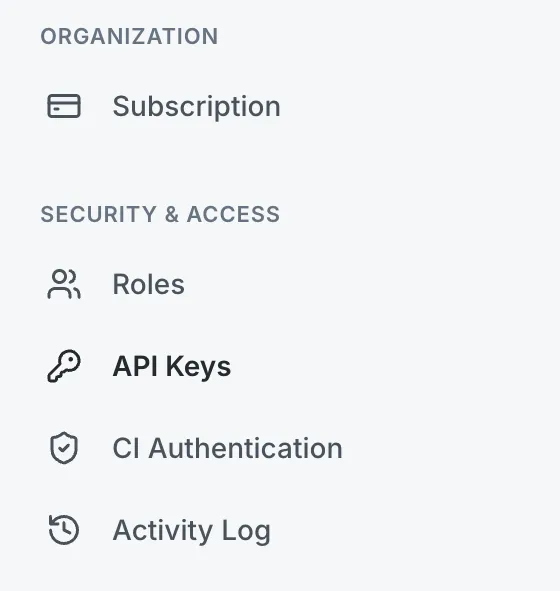
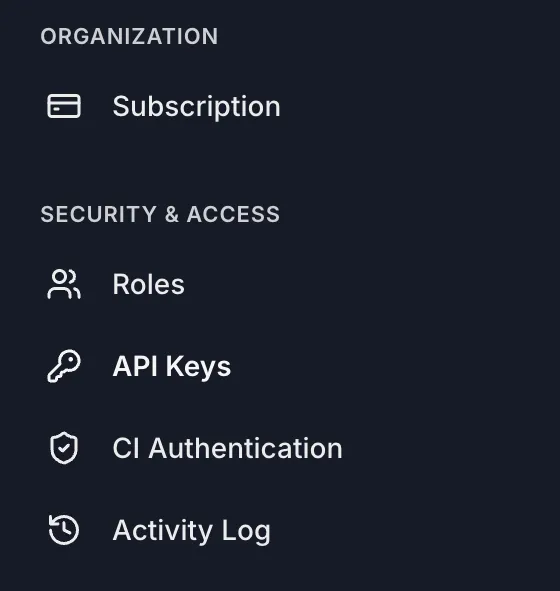
In the dashboard, open the organization’s Settings → Security & Access → API Keys.
-
Click Add API Key, name the key, pick when it expires, grant it the permissions it needs, and click Create Key.
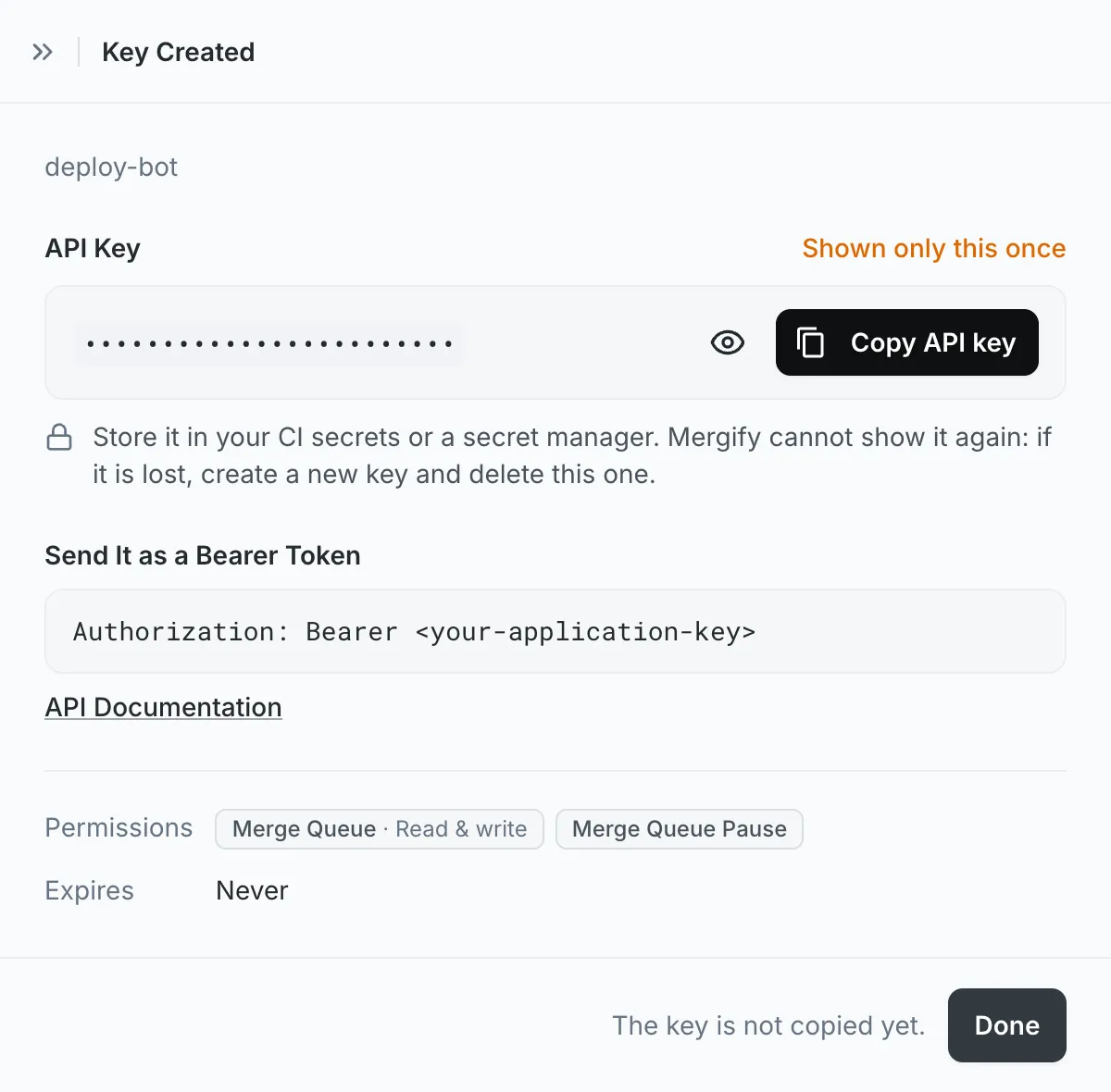
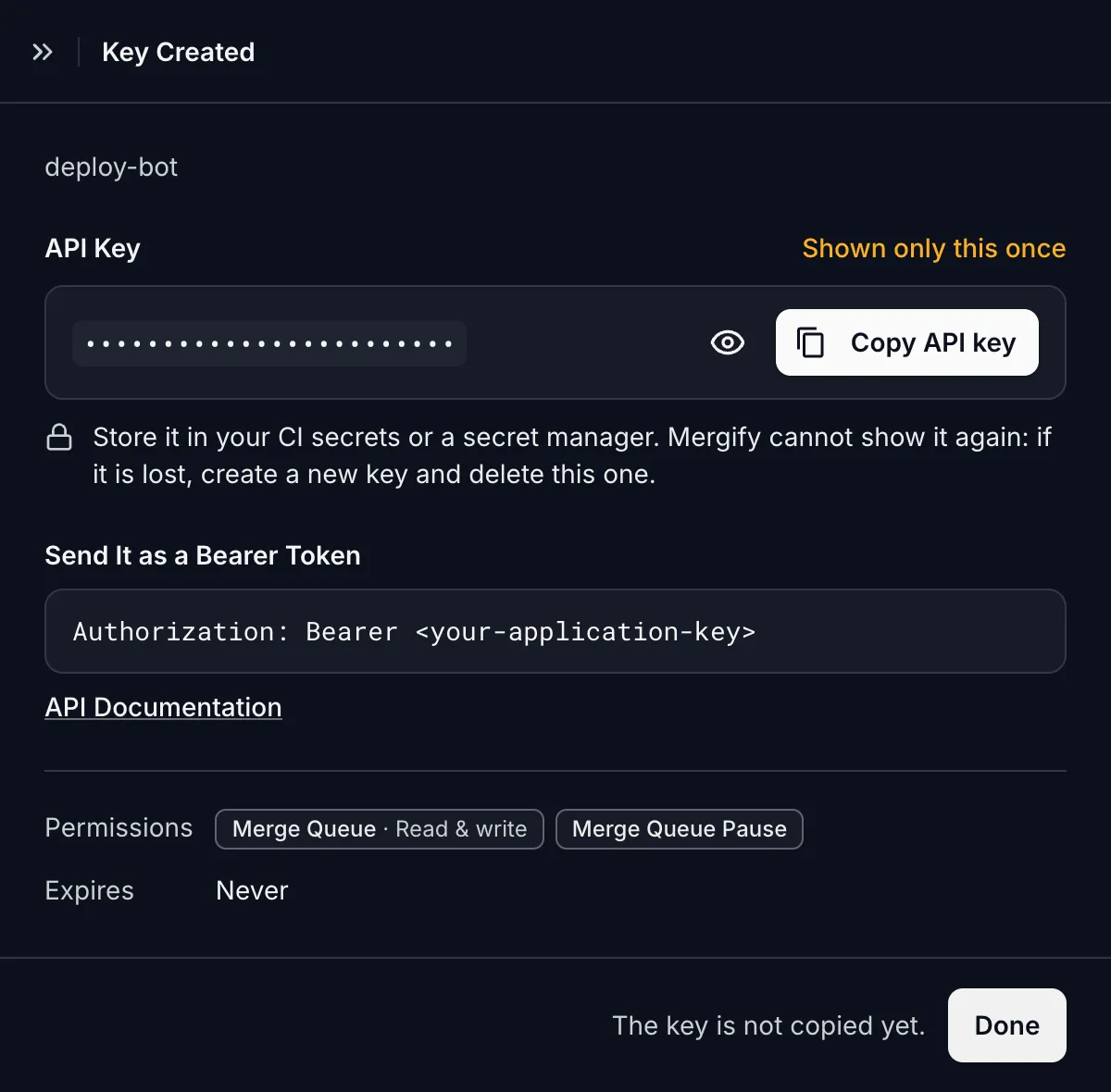
The key appears once: copy it before you click Done, since there is no way to recover it. If you lose one, create another and delete the lost one.
Creating a CI key
Section titled Creating a CI keyA CI key holds CI Reporting and nothing else. To create one:
-
Open the dashboard, select the organization the key will reach, go to Settings → Security & Access → CI Authentication, and click Add CI Key.
-
Pick where the key will be used. For GitHub Actions, the dialog first offers OIDC, which needs no key. For a job OIDC cannot serve, click I Still Need a Key and say why.
-
Name the key, pick when it expires, and click Create Key.
The key appears once, in the dialog: store it in your CI’s secrets as
MERGIFY_TOKEN.
Application key permissions
Section titled Application key permissionsThe API is split into resources: the merge queue, its pause, scheduled freezes, quarantines, Slack, and so on. A key holds one level on each:
-
No access: the key calls nothing that reads or changes the resource. A key made on API Keys starts here on every resource.
-
Read: the key reads it.
-
Read & write: the key reads and changes it.
A resource the API only reads, such as Tests, offers Read alone. Merge Queue Pause has one level: a key either holds it or does not.
Every resource, the first row of the form, sets every resource at once to Read or Read & write, including the ones Mergify adds later. At Read, it leaves out Merge Queue Pause, which has no Read level. A resource can still be raised above it: Every resource at Read with Quarantines at Read & write is a key that reads everything and changes nothing but quarantines.
Each operation in the API Reference names the permission a key needs to
call it, such as quarantines: write, with write including read. An
operation naming two takes either.
A key belongs to its organization, not to a repository or to the person who created it. It works on every repository of that organization, within its permissions, and carries no GitHub repository role, so the Features Permissions table does not restrict it.
CI reporting
Section titled CI reportingCI Reporting covers what an unattended CI job does: uploading CI and test results, setting scopes, and the reads a job makes while it runs. Those reads include the test runs recorded for a commit, the list of quarantined tests, and the flaky-detection and test-selection data the test framework integrations fetch mid-run.
A new key gets it only as a CI key. A key granted Every resource is refused on those operations except two reads: the test runs of a commit also answer a key that reads Tests, and the quarantine list a key that reads Quarantines.
When a key is refused
Section titled When a key is refusedA key that lacks the permission a request needs gets the same answer as a key
whose request names a repository of another organization, or one that does
not exist: 403, error code APPLICATION_KEY_REFUSED, and the same message.
To see what the key holds, call
GET /application with it.
Key expiry
Section titled Key expiryYou pick when a key expires as you create it: never, 30, 60 or 90 days, a year, or a date of your own, in which case the key stops working at the end of that day, in the time zone of the browser it was created from. A CI key made instead of OIDC gets 90 days at most. The expiry cannot be changed afterwards.
The key list’s Expires column counts down (in 12 days), then shows
Expired. From then on, the API refuses the key with 401, error code
APPLICATION_KEY_EXPIRED, and a message giving the date it expired. Mergify
sends no warning beforehand: create a new key and put it wherever the old one
is used before the date comes.
Changing an application key
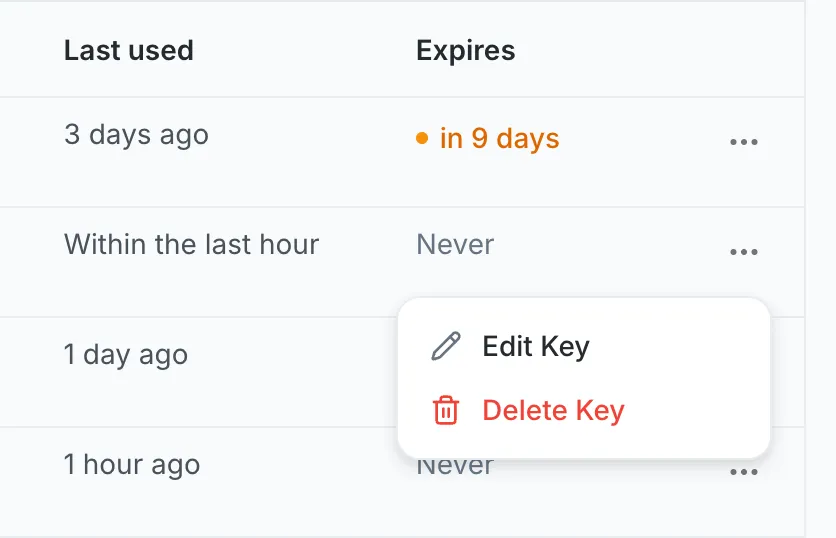
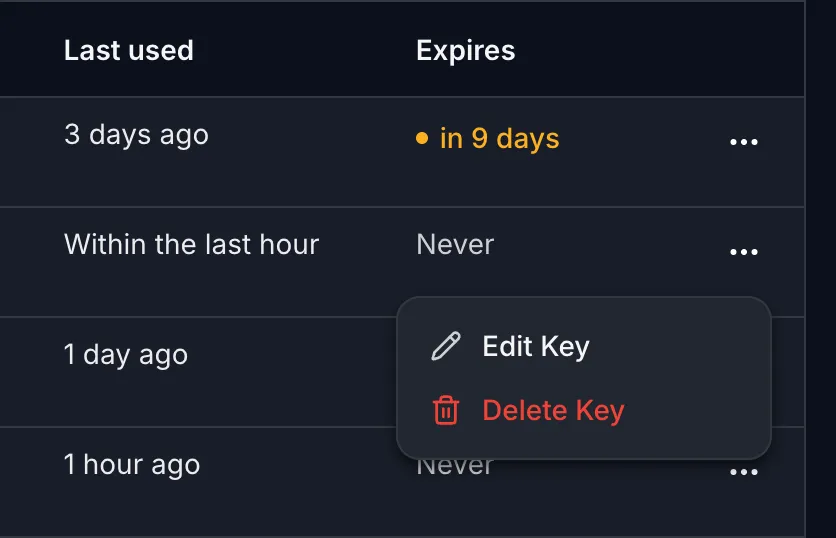
Section titled Changing an application keyAn organization Owner changes the permissions of any key but a CI key with
Edit Key in its row menu. The key keeps its secret, so nothing that uses
it needs to change, and its next request is decided by the new permissions. A
key created before CI keys may hold CI Reporting beside other permissions.
Saving its permissions takes CI Reporting away: give the jobs that use it a CI
key first. Any key can be renamed.
Revoking an application key
Section titled Revoking an application key-
Open Settings → Security & Access → API Keys in the dashboard, or CI Authentication for a CI key.
-
Click Delete Key in the key’s row menu, then Delete Key again to confirm. The key stops working at once.
Mergify also deletes a key on its own when GitHub finds it published, for example in a public repository; see GitHub secret scanning.
Was this page helpful?
Thanks for your feedback!