API Usage
Learn how to authenticate and work with the Mergify REST API.
Mergify provides a RESTful API for integrating with your merge queues, CI Insights, and Workflow Automation.
All API requests should be directed to: https://api.mergify.com/v1
The API is entirely documented in the API Reference.
Authentication
Section titled AuthenticationThe Mergify API supports three authentication methods, all using Bearer tokens: Application Keys (generated from your dashboard), GitHub Personal Access Tokens, and Mergify User Tokens.
Creating an Application Key
Section titled Creating an Application KeyA key belongs to an organization, so start from the organization you want it to reach:
-
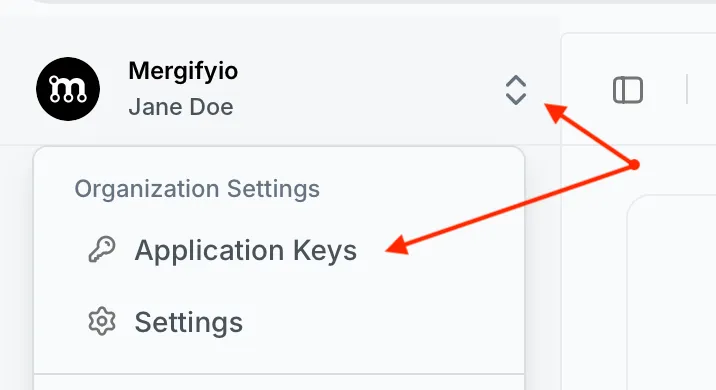
Open the dashboard and select the organization.
-
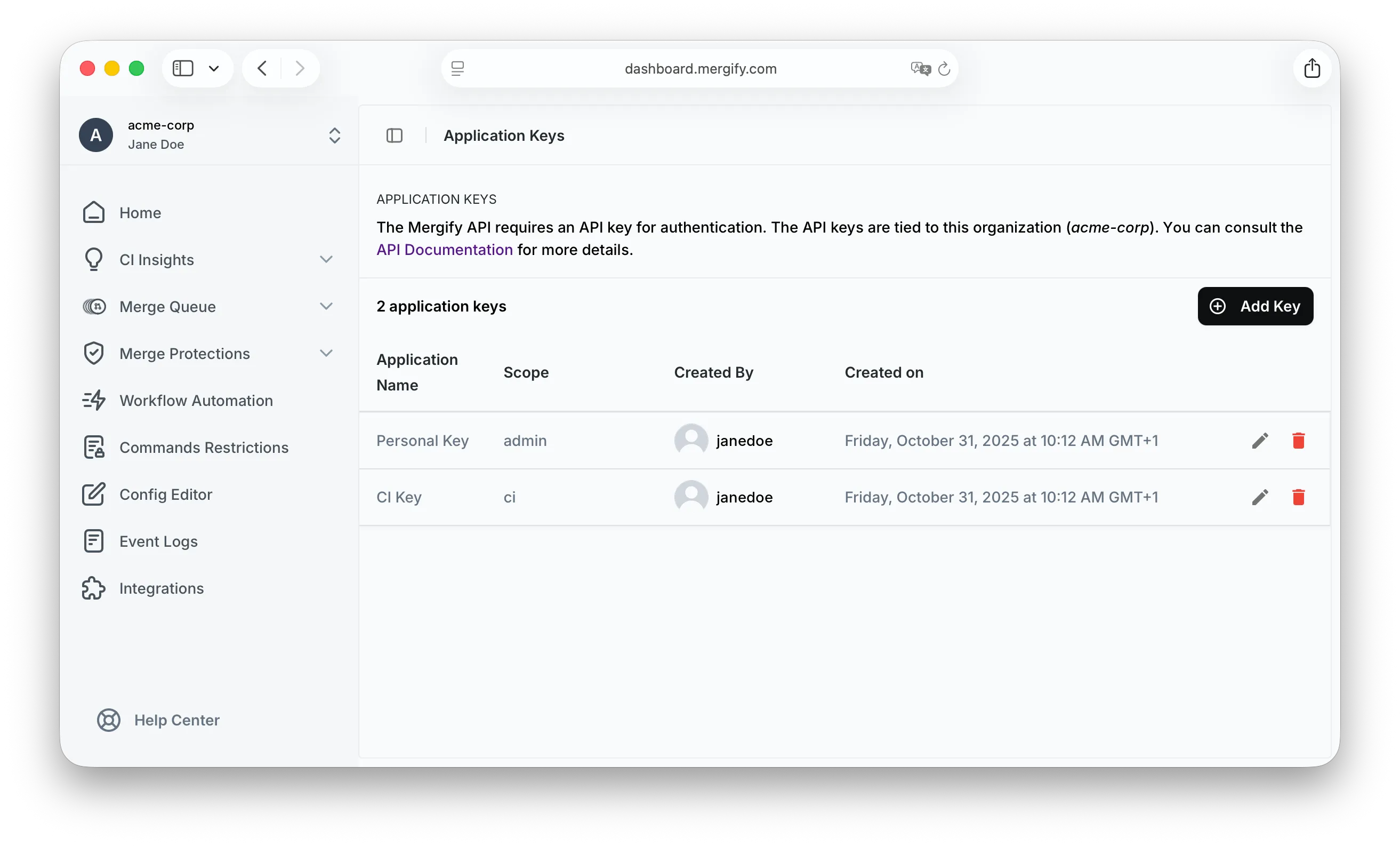
Go to Settings → Developer → Application Keys.
-
Click Add Key, name the key, and pick its scope.
-
Click Create.
The scope selector only appears if you are an admin of the GitHub
organization. Everyone else creates ci keys, and creating, renaming, or
deleting an admin key from an account that is not an org admin fails with
403.
The key appears once, in a banner above the list. Copy it before you leave the page: reloading does not bring it back, and there is no way to recover it. If you lose one, delete the key and create another.
Application Key Scopes
Section titled Application Key ScopesApplication keys have two scopes, picked when you create the key:
-
admin: the whole API, except uploading results, setting Merge Queue Scopes, and the mid-run flaky-detection and test-selection reads below, which need acikey. -
ci: uploading CI and test results, setting Merge Queue Scopes, and the reads a job makes while it runs: the list of quarantined tests, and the flaky-detection and test-selection data the test framework integrations fetch mid-run.
A ci key reaches nothing else in Test Engine. Browsing tests, their
executions and their failures, and adding or removing a quarantine, are answered
with 403 and need an admin key, a GitHub personal access token, or a user
token. A ci key sits in CI configuration, where a build log or a workflow
file can reach it, so it carries only what an unattended job needs.
A key belongs to a GitHub account, not to a repository or to the person who created it. It works on every repository of that account and carries no GitHub repository role, so the Features Permissions table does not restrict it.
Using the API Key
Section titled Using the API KeyWith the provided API key, you’re set to make authenticated requests against the Mergify API. For example, to validate the authenticity of your token, you can retrieve your application’s information:
curl -H "Accept: application/json" \ -H "Authorization: Bearer <my-application-api-key>" \ https://api.mergify.com/v1/applicationResponse:
{ "id": "e155518c-ca1b-443c-9be9-fe90fdab7345", "name": "my application", "scope": "ci", "account_scope": { "id": 123456, "login": "Mergifyio" }}The scope field tells you which of the two scopes above the key holds.
Using a GitHub Personal Access Token
Section titled Using a GitHub Personal Access TokenAs an alternative to application keys, you can authenticate to the Mergify API using a GitHub Personal Access Token (PAT) as a Bearer token. This is useful when integrating with tools that already have a GitHub token available, such as CI environments.
You must have logged in to the Mergify dashboard at least once using GitHub OAuth before using this method. The PAT is only used to verify your GitHub identity: all permissions are based on your Mergify account, not the PAT’s scopes.
Accepted token formats:
ghp_*: classic personal access tokensgithub_pat_*: fine-grained personal access tokensgho_*: GitHub OAuth user tokens
Tokens issued to a GitHub App rather than to a user (ghu_*, ghs_*) are not
accepted. A job that only has an app installation token needs an application
key instead.
Example:
curl -H "Accept: application/json" \ -H "Authorization: Bearer <github-personal-access-token>" \ https://api.mergify.com/v1/repos/<owner>/<repository>/queuesUsing a Mergify User Token
Section titled Using a Mergify User TokenMergify also issues user tokens of its own, recognizable by their mut_
prefix and obtained through the OAuth 2.0 device authorization grant. Run
mergify auth login to get one. Send it as a
Bearer token, the same way as the credentials above.
A user token identifies the person it was issued to. It reaches exactly what its owner’s dashboard session reaches, and nothing on GitHub directly, so holding one grants no access its owner does not already have.
Revoking an Application Key
Section titled Revoking an Application KeyIf, for any reason, you need to revoke an application key:
-
Open Settings → Developer → Application Keys in the dashboard.
-
Click the delete icon on the key’s row, and confirm.
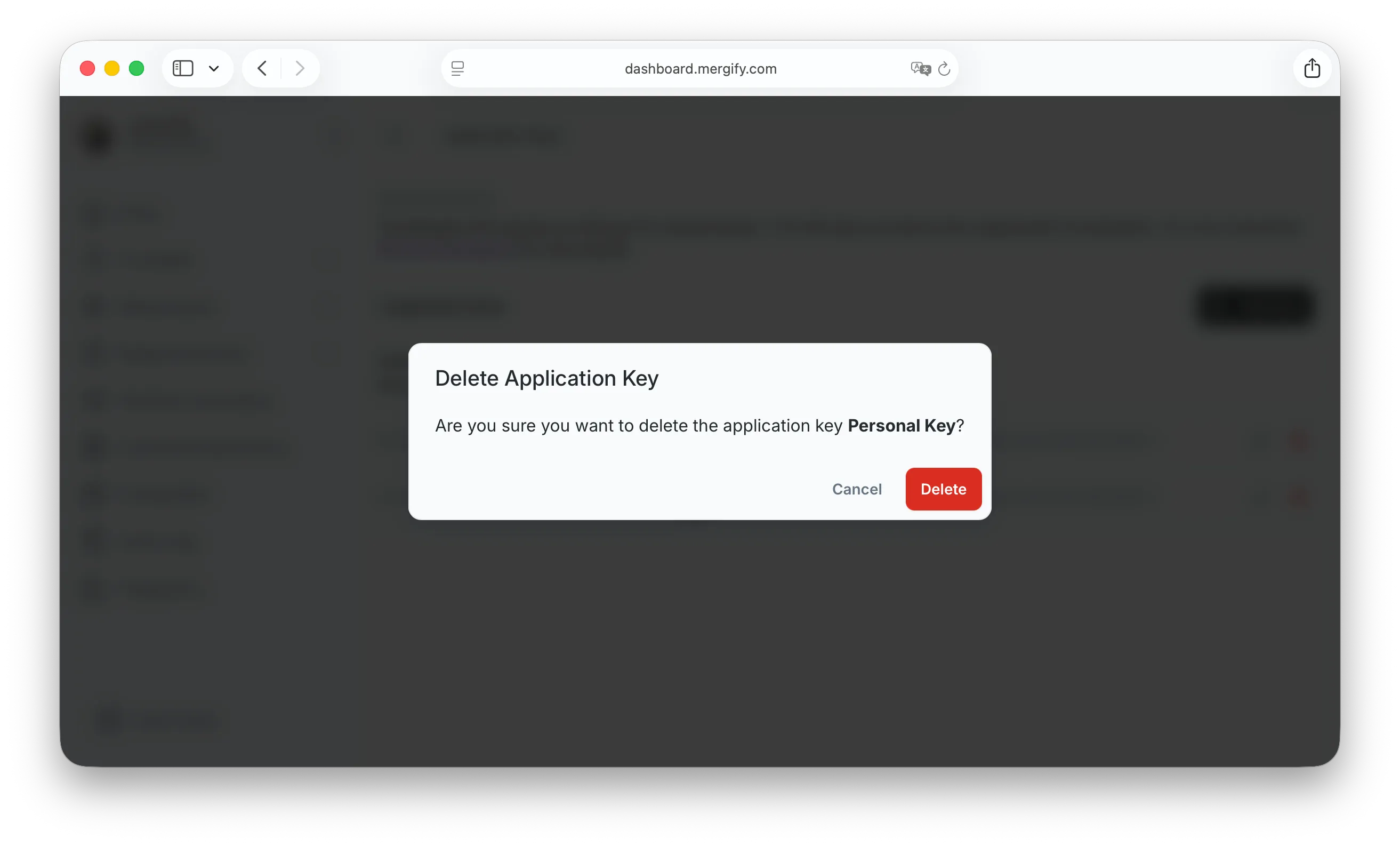
The key is removed, revoking any access it provided.
Pagination
Section titled PaginationEndpoints that return lists of items use cursor-based pagination. Paginated
responses include a Link header
(RFC 5988) with URLs
for navigating between pages.
Query parameters:
-
per_page: Number of items per page, from 1 to 100. Most paginated endpoints default to 10. On others, pagination is opt-in: they have no default and return the whole list in a single response until you passper_page. Where pagination is opt-in, the endpoint’s entry in the API Reference says so. -
cursor: Opaque cursor for the current page. Extract this from theLinkheader; do not construct it manually.
Link header example:
Link: <https://api.mergify.com/v1/repos/<owner>/<repository>/logs?cursor=abc&per_page=20>; rel="next", <https://api.mergify.com/v1/repos/<owner>/<repository>/logs?cursor=def&per_page=20>; rel="prev"The Link header may include the following relations:
next: The next page of resultsprev: The previous page of results
Each relation appears only when that page exists: next is absent on the last
page, prev on the first. The two are independent, and a middle page carries
both. When neither applies — a result set that fits on a single page — the
Link header is omitted entirely.
To iterate through all pages, follow the rel="next" link
until it is no longer present in the response. To get back to the first page,
call the endpoint again without a cursor.
Each link carries the query parameters of the request it came from, so following
one keeps the filters you set. On an endpoint whose start and end default to
a window ending at the current time, the resolved bounds are pinned into the
links too: iterating with rel="next" keeps serving the window the first page
was built from, instead of resolving a fresh one against a later clock and
dropping the oldest items on the way. A bound you passed yourself is echoed back
as you sent it.
Error Handling
Section titled Error HandlingThe API uses standard HTTP status codes to indicate the success or failure of a request.
| Status Code | Meaning | Description |
|---|---|---|
200 | OK | The request succeeded. |
201 | Created | The resource was created. |
204 | No Content | The request succeeded and the response has no body. |
403 | Forbidden | The credential was refused, or is valid but lacks permission for this resource. |
404 | Not Found | The requested resource does not exist. |
409 | Conflict | The request conflicts with the current state of the resource. |
422 | Unprocessable Entity | The request body or parameters are invalid. |
Was this page helpful?
Thanks for your feedback!