CI Insights Setup – GitHub Actions
Enable Mergify CI Insights and configure flaky test detection using GitHub Actions.
This page explains how to enable CI Insights for a repository using GitHub Actions and how to configure repeated test executions for flaky test detection.
Enabling CI Insights for GitHub Actions
Section titled Enabling CI Insights for GitHub Actions-
Enable CI Insights for each repository you want it to cover, on the Repositories page of the dashboard (docs).
-
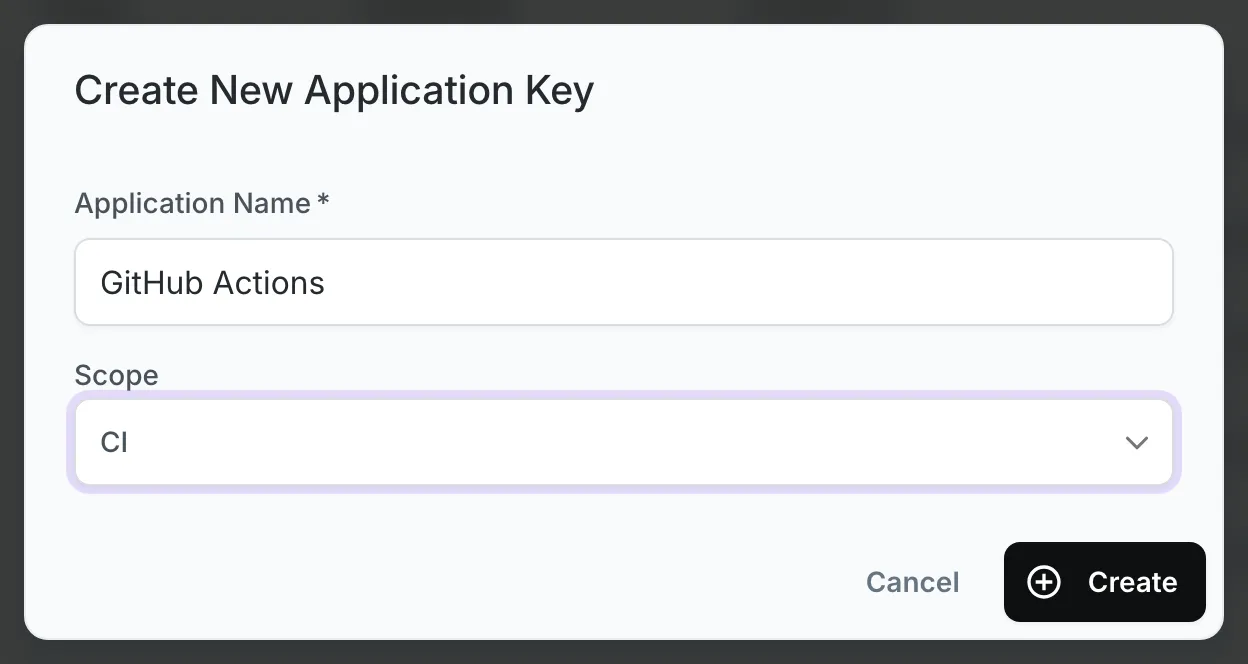
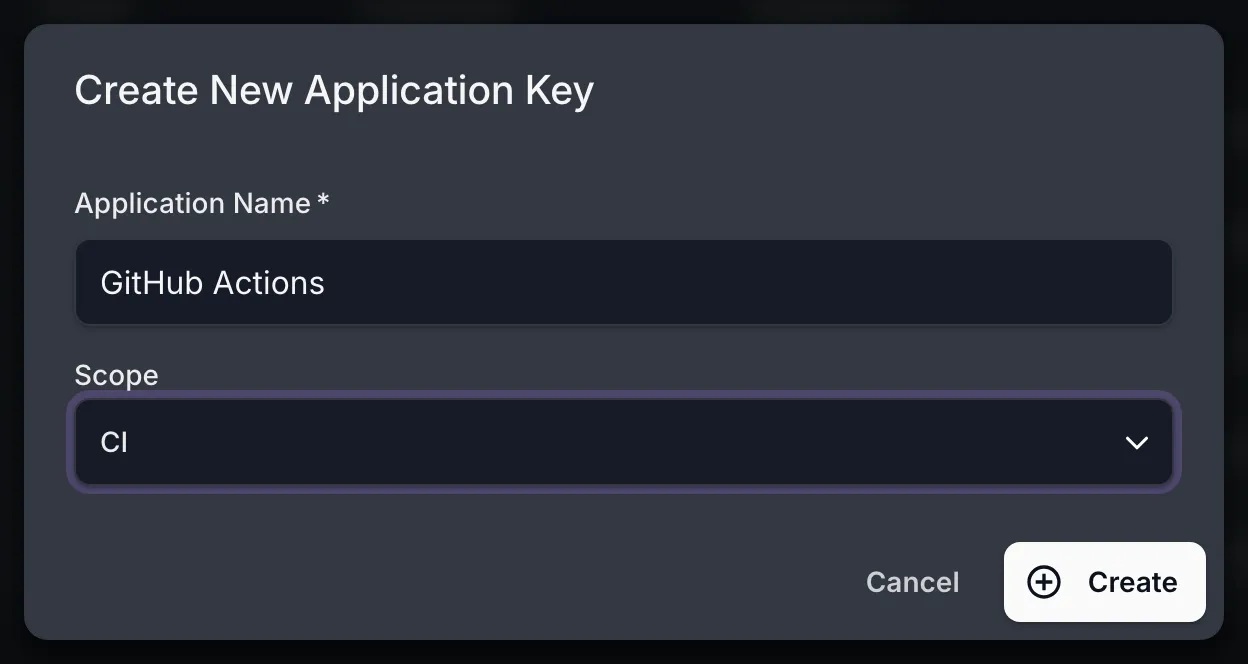
To upload your test results, you’ll need to configure your test framework. Before doing so, create an application key with
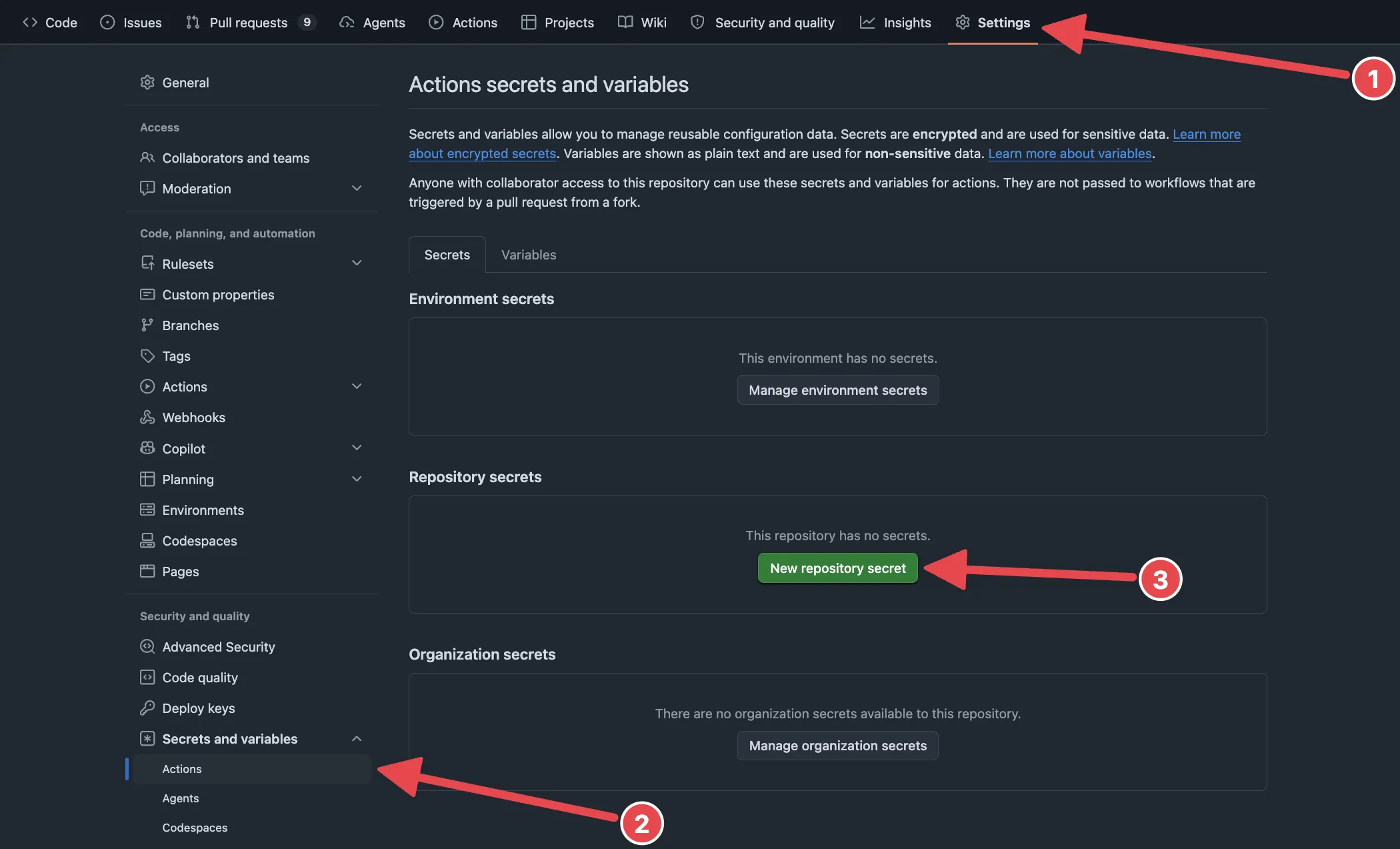
ciscope as described in the API Usage documentation and set it asMERGIFY_TOKENin your GitHub Actions secrets.This key will be used to upload test reports.
-
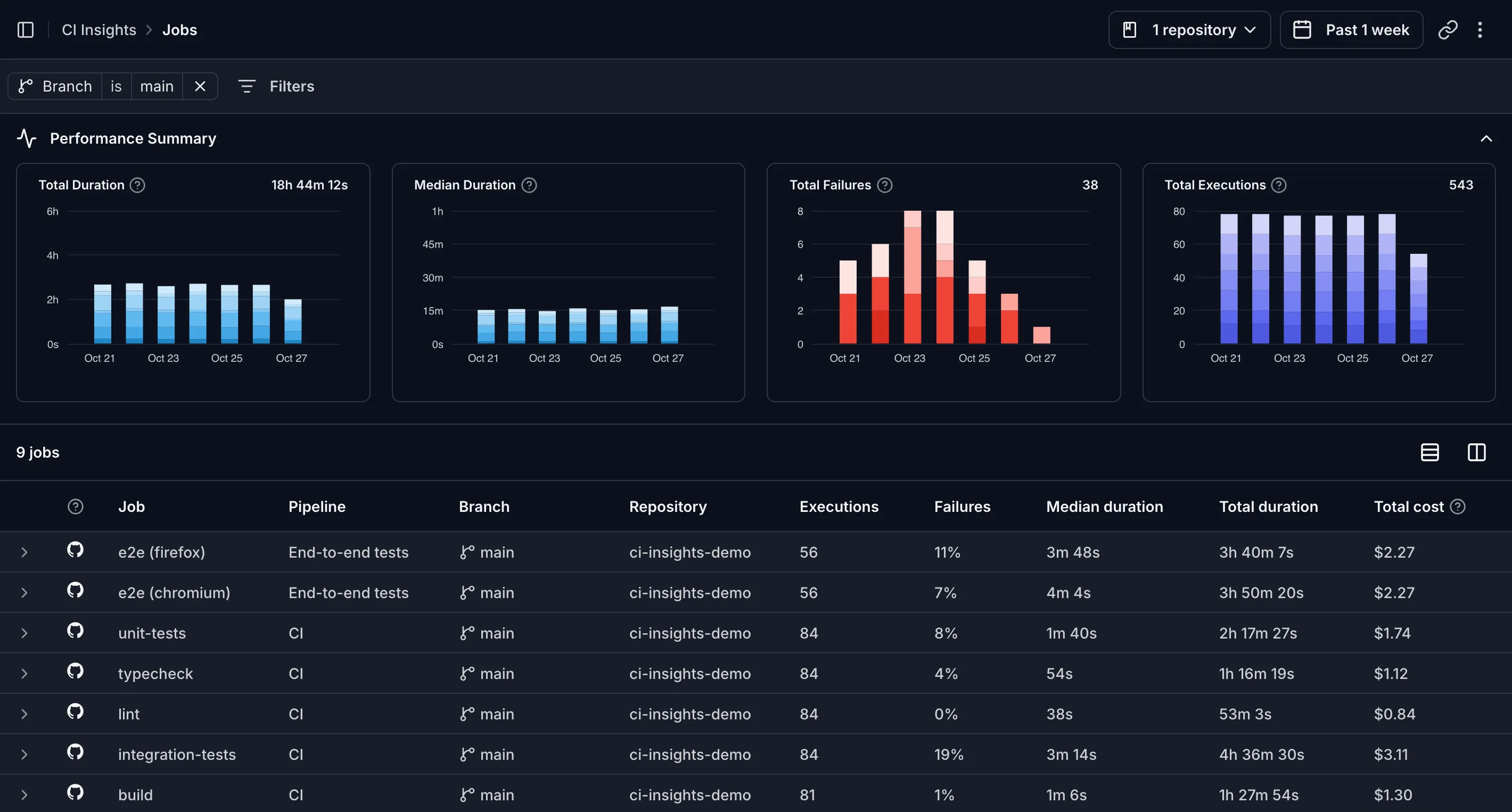
Click on
CI Insightsin the Mergify dashboard navigation. You should start seeing your GitHub Actions job runs appear: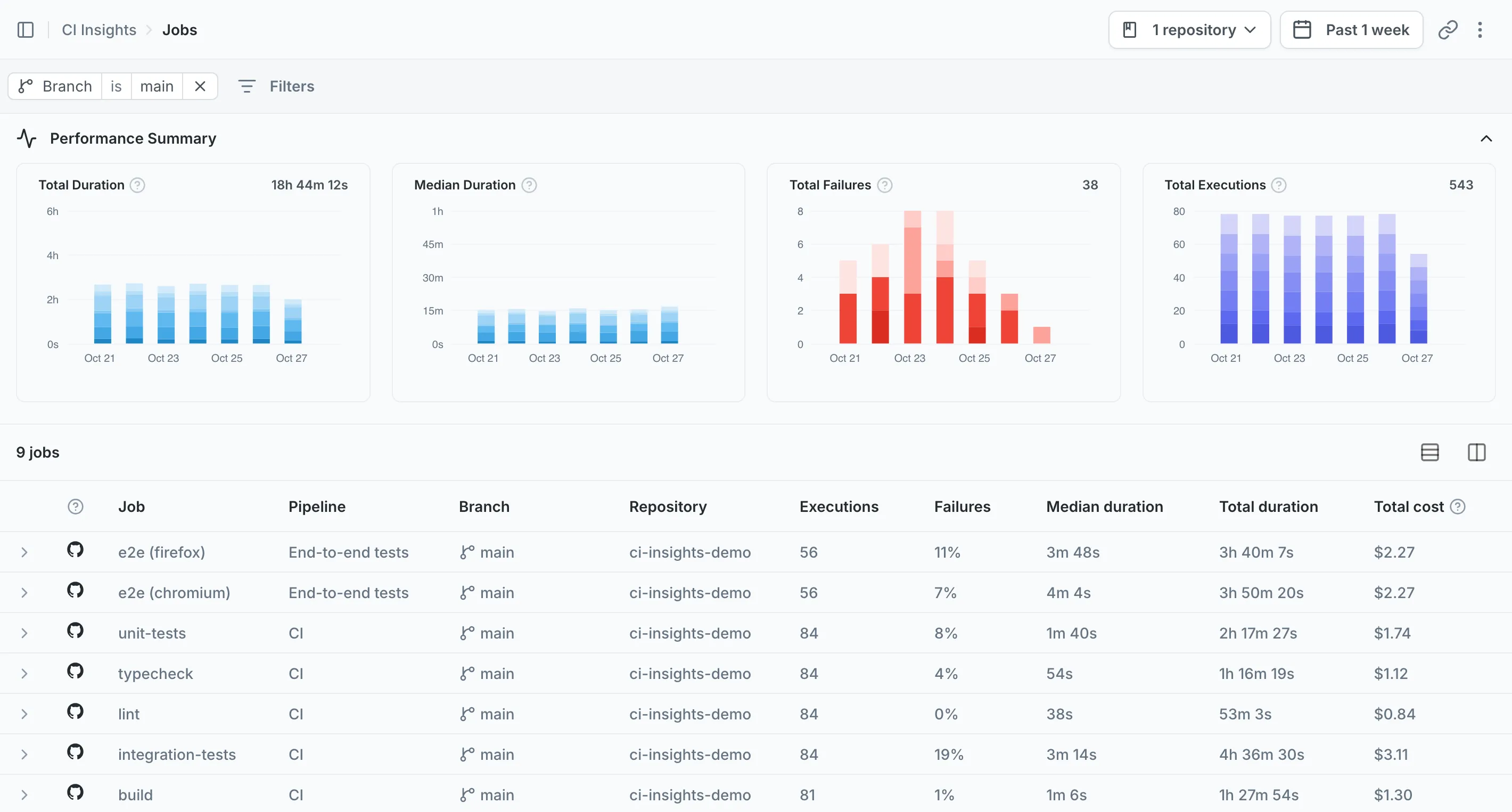
The mergifyio/gha-mergify-ci action runs on Linux, macOS and Windows runners.
Pull requests without the secret
Section titled Pull requests without the secretWorkflows run for pull requests from forks get no repository secrets, and
those run for Dependabot pull requests get only the Dependabot secrets. In
those runs MERGIFY_TOKEN is empty:
-
The test plugins (pytest, RSpec, Minitest, Vitest, Playwright, Jest, Mocha) upload nothing and the tests run as usual. Nothing to change.
-
The
mergifyio/gha-mergify-ciupload step fails without a token. Skip it when the secret is missing:jobs: test: env: HAS_MERGIFY_TOKEN: ${{ secrets.MERGIFY_TOKEN != '' }} steps: # ... - name: Mergify CI Upload if: (success() || failure()) && env.HAS_MERGIFY_TOKEN == 'true' uses: mergifyio/gha-mergify-ci@v27 with: token: ${{ secrets.MERGIFY_TOKEN }} report_path: junit.xml test_step_outcome: ${{ steps.tests.outcome }}If the test step has
continue-on-error: true(needed for quarantine), the job’s result comes from the upload step. When that step is skipped, a failing test run would leave the job green, so add a step that fails it:- name: Fail when tests failed and no report was uploaded if: steps.tests.outcome == 'failure' && env.HAS_MERGIFY_TOKEN != 'true' run: exit 1
Reusable workflows
Section titled Reusable workflowsA workflow called with uses: ./.github/workflows/<file>.yml receives no
secrets unless its caller passes them:
# Callerjobs: tests: uses: ./.github/workflows/tests.yml secrets: MERGIFY_TOKEN: ${{ secrets.MERGIFY_TOKEN }} # or `secrets: inherit`When the caller passes it by name, as above, the called workflow must declare
it, or the run fails (secrets: inherit needs no declaration):
# Called workflowon: workflow_call: secrets: MERGIFY_TOKEN: required: falseA called workflow reports under its caller’s workflow name. When two called
workflows have a job with the same id (often test), their results collide:
set a distinct MERGIFY_TEST_JOB_NAME in each.
Setting up flaky test detection
Section titled Setting up flaky test detectionTo effectively detect flaky tests, you need to run the same tests multiple times on the same code (identified by the SHA1 of the repository). This section explains how to set up your CI to systematically detect flaky tests.
Prerequisites
Section titled PrerequisitesBefore setting up flaky test detection, ensure you have:
-
Enabled CI Insights for your repository
-
Created an application key with
ciscope and set it asMERGIFY_TOKENin GitHub Actions secrets -
Configured test integration (e.g.,
pytest-mergifyor JUnit report upload) for your test framework
GitHub Actions setup
Section titled GitHub Actions setupThe recommended approach is to use a scheduled workflow that runs your test suite multiple times on the default branch. Here’s an example configuration that runs tests twice daily with 5 repeated executions:
- Example with native integration (e.g.
pytest-mergify)
name: Continuous Integrationon:  pull_request:  schedule:    - cron: '0 */12 * * 1-5'  # Every 12 hours, Monday to Friday
jobs:  test:    runs-on: ubuntu-latest    steps:      - name: Checkout        uses: actions/checkout@v4
      # Add your specific setup steps here (Python, Node.js, etc.)
- name: Run Tests env: MERGIFY_TOKEN: ${{ secrets.MERGIFY_TOKEN }} RUN_COUNT: 5 # Number of times to run each test run: | # Run your test suite multiple times to detect flakiness set +e failed=0 for i in $(seq "$RUN_COUNT"); do pytest tests/ exit_code=$? if [ $exit_code -ne 0 ]; then failed=1 fi done exit $failed- Example with JUnit report upload via
gha-mergify-ci
name: CIon:  pull_request:  schedule:    - cron: '0 */12 * * 1-5'  # Every 12 hours, Monday to Friday
jobs:  test:    runs-on: ubuntu-latest
    steps:      - uses: actions/checkout@v4
      # Add your specific setup steps here (Python, Node.js, etc.)
      # Modified: Run tests multiple times for flaky detection      - name: Run tests        env:          # Run tests 5 times on schedule, once on pull_request          RUN_COUNT: ${{ github.event_name == 'schedule' && 5 || 1 }}        run: |          # Run the test suite based on RUN_COUNT          for i in $(seq $RUN_COUNT); do            echo "Running test suite - attempt $i of $RUN_COUNT"
            # Run your test command with unique output file, e.g.:            # ./vendor/bin/phpunit --log-junit test-results-$i.xml          done
      # Upload all test results to Test Engine      - name: Upload test results        if: success() || failure()        uses: mergifyio/gha-mergify-ci@v27        with:          token: ${{ secrets.MERGIFY_TOKEN }}          report_path: test-results-*.xml
Configuration tips
Section titled Configuration tips-
Frequency: Running twice daily (every 12 hours) provides a good balance between detection accuracy and resource usage
-
Default Branch Only: Focus on the default branch where flaky tests have the most impact
-
Weekday Schedule: The example runs Monday to Friday (
1-5) to avoid running when no changes are made to the code -
Job name: Test Engine records the job a test ran in as part of that test’s identity, alongside the branch and the pipeline, so a job name that varies between runs splits one test into several and leaves nothing to compare. Keep it stable across the repeated runs. By default it comes from
GITHUB_JOB, the workflow job’s identifier. SetMERGIFY_TEST_JOB_NAMEon the job to report a different one. Matrix builds need it, because every matrix job reports the sameGITHUB_JOB:jobs: test: strategy: matrix: version: [10, 12, 14] env: MERGIFY_TEST_JOB_NAME: test (${{ matrix.version }})Set it on the job rather than on a single step, so every step in the job reports the same name. A step’s
envapplies to that step alone, so a name set on the step that runs your tests never reaches the upload step. The exception is a job that runs two test suites: give each its own name, on each test step for a plugin, or with each upload step’sjob_nameinput.When the upload goes through
gha-mergify-ci, the action’sjob_nameinput sets the name reported with that step’s results:- uses: mergifyio/gha-mergify-ci@v27 with: token: ${{ secrets.MERGIFY_TOKEN }} report_path: test-results-*.xml job_name: test (${{ matrix.version }})job_nametakes precedence overMERGIFY_TEST_JOB_NAMEwhen both are set. Leave it out and the name set on the job applies.
Key environment variables
Section titled Key environment variables| Variable | Purpose | Default |
|---|---|---|
MERGIFY_TEST_JOB_NAME |
Name the job's test results are reported under, instead of the CI job's own name. Set one per environment, never per shard: a name per shard splits a test's history. | |
MERGIFY_TOKEN |
The Mergify credential: an application key in CI. Without it the test reporters upload nothing. A |
Nothing in Mergify reads RUN_COUNT. The examples above declare it to drive
their own loop, so call it whatever you like, or drop it and repeat the suite
some other way.
Was this page helpful?
Thanks for your feedback!