CI Insights Setup – Buildkite
Enable Mergify CI Insights and configure flaky test detection using Buildkite.
This page explains how to enable CI Insights for a repository using Buildkite and how to configure repeated test executions for flaky test detection.
Enabling CI Insights for Buildkite
Section titled Enabling CI Insights for Buildkite-
Enable CI Insights for each repository you want it to cover, on the Repositories page of the dashboard (docs).
-
Create an application key with
ciscope as described in the API Usage documentation. This key will be used both for the webhook authentication and for uploading test reports. -
Configure a webhook in Buildkite to send build and job events to Mergify. Go to your Buildkite Organization Settings → Integrations → Notification Services and add a new Webhook notification with the following settings:
-
Webhook URL: set it to:
https://api.mergify.com/v1/ci/<org>/repositories/<repo>/buildkite/webhooksReplace
<org>with your Mergify organization name and<repo>with your repository name. -
Token: paste your Mergify application key and select Send the token as X-Buildkite-Token.
-
Events: enable the two events Mergify records:
Event Description build.finishedA build has finished job.finishedA job has finished Any other Buildkite event reaching this webhook is accepted and discarded, so enabling more only adds traffic.
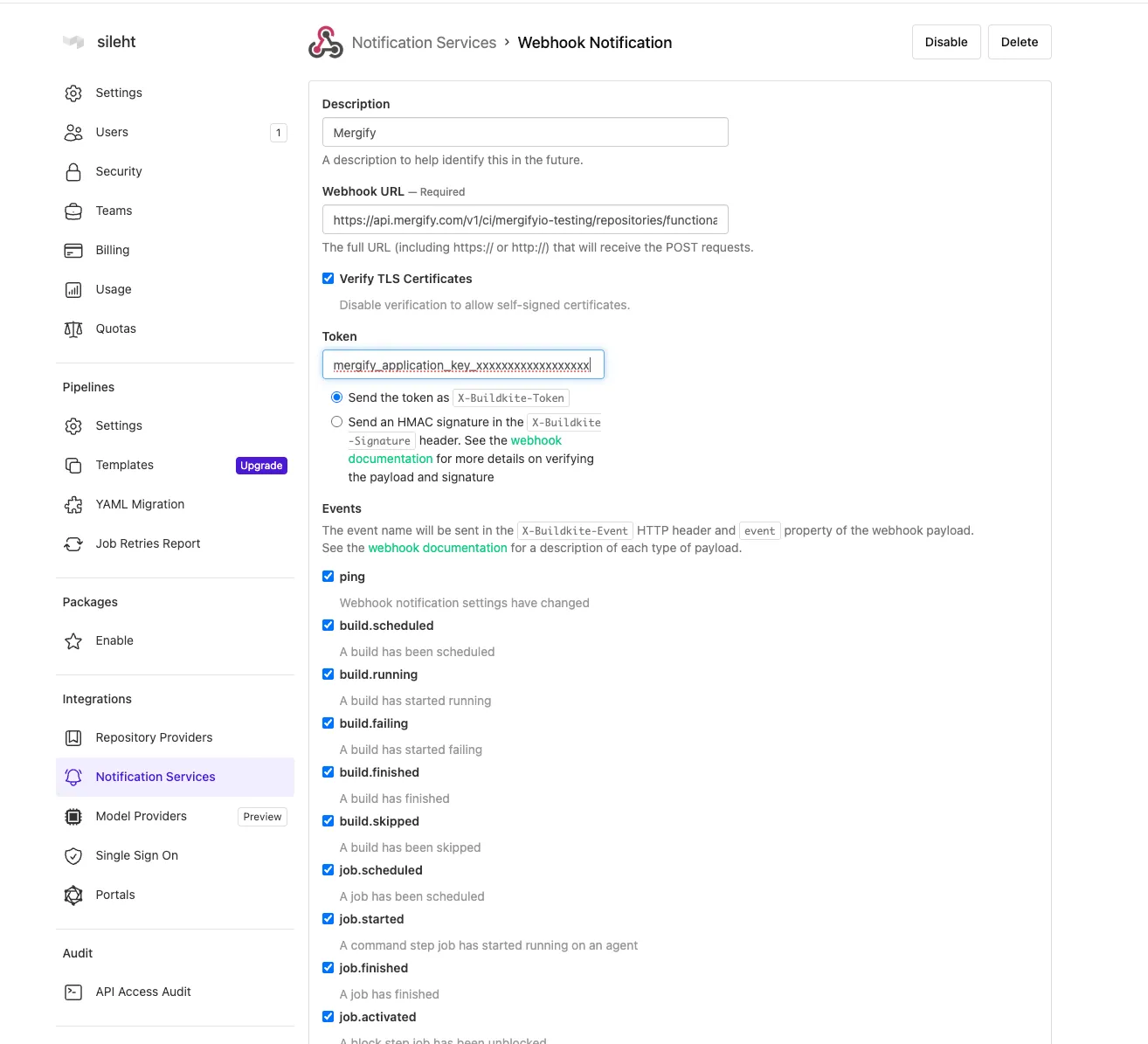
-
-
Make the application key available as
MERGIFY_TOKENin the environment of your Buildkite agents, through an agentenvironmenthook or a secrets plugin. The Buildkite plugin reads it from there to upload test reports. -
Click on
CI Insightsin the Mergify dashboard navigation. You should start seeing your Buildkite job runs appear: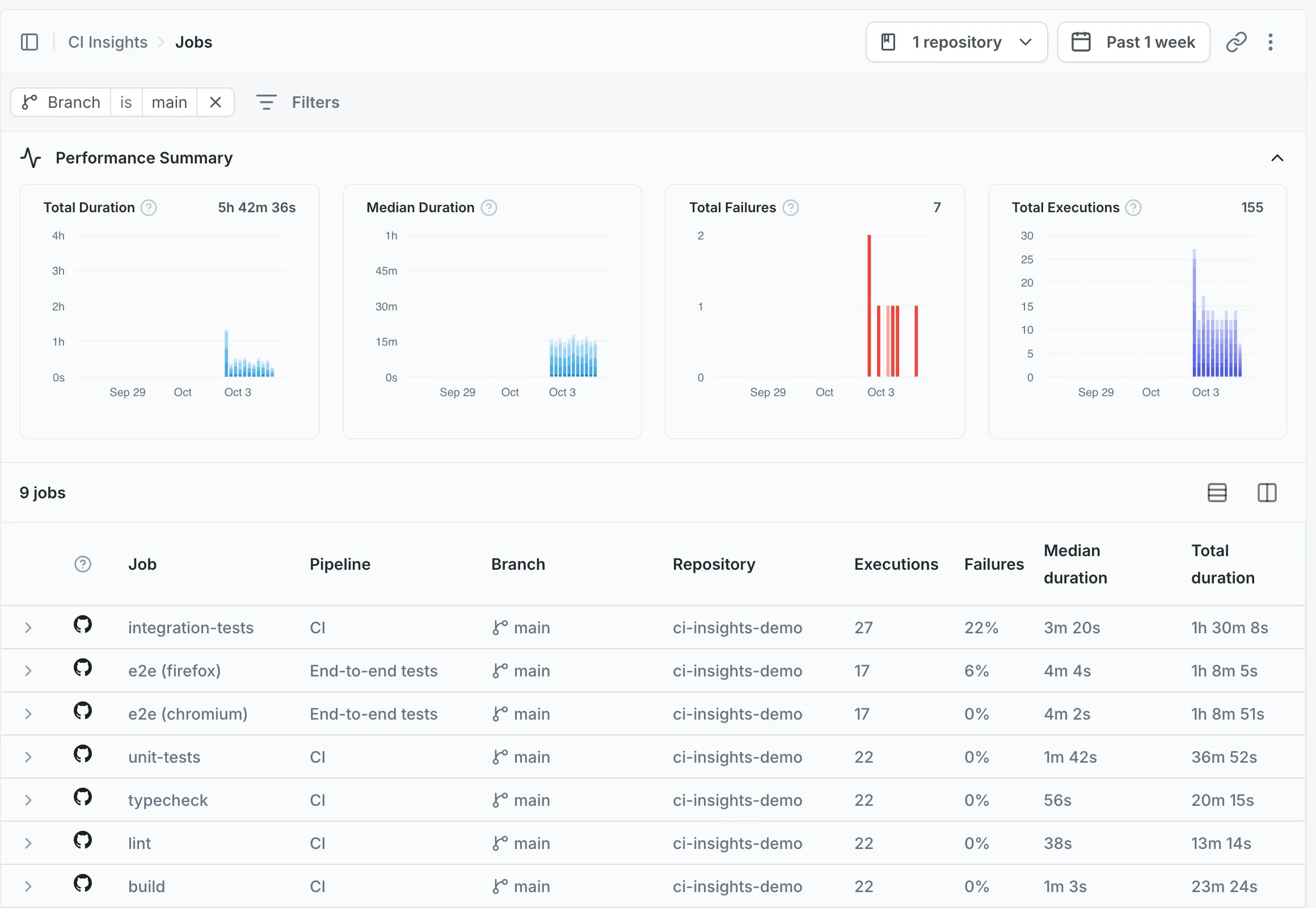
Uploading Test Results
Section titled Uploading Test ResultsUse the mergifyio/mergify-ci
Buildkite plugin to upload JUnit XML test reports:
steps: - label: "Run tests" command: pytest --junitxml=reports/junit.xml plugins: - mergifyio/mergify-ci#v8: action: junit-process report_path: "reports/*.xml"The plugin runs in the post-command hook, so your test command executes first,
then the plugin uploads the results. Even if your tests fail, the results are
still uploaded. The step carries no token: the plugin picks up MERGIFY_TOKEN
from the agent’s environment, and fails the step if it is not there.
For frameworks with native Mergify integration (e.g., pytest-mergify), no
plugin is required: the reporter reads MERGIFY_TOKEN from the same agent
environment.
Setting Up Flaky Test Detection
Section titled Setting Up Flaky Test DetectionTo detect flaky tests, you need to run the same tests multiple times on the same code. This section explains how to set up your Buildkite pipeline for repeated test execution.
Prerequisites
Section titled PrerequisitesBefore setting up flaky test detection, ensure you have:
-
Enabled CI Insights for your repository
-
Created an application key with
ciscope and set it asMERGIFY_TOKENin the environment of your Buildkite agents, not in the pipeline file -
Configured test integration for your test framework
Buildkite Setup
Section titled Buildkite SetupUse a scheduled build that runs your test suite multiple times on the default branch. Here’s an example pipeline that runs tests with 5 repeated executions:
steps: - label: "Flaky test detection" command: | set +e failed=0 for i in $(seq $${RUN_COUNT:-5}); do echo "--- Run $$i of $${RUN_COUNT:-5}" pytest --junitxml=reports/junit-$$i.xml tests/ if [ $$? -ne 0 ]; then failed=1 fi done exit $$failed plugins: - mergifyio/mergify-ci#v8: action: junit-process report_path: "reports/*.xml"Configure a schedule in your Buildkite pipeline settings to run this every 12 hours on weekdays.
Configuration Tips
Section titled Configuration Tips-
Frequency: Running twice daily (every 12 hours) provides a good balance between detection accuracy and resource usage
-
Default Branch Only: Focus on the default branch where flaky tests have the most impact
-
Weekday Schedule: Run Monday to Friday to avoid running when no changes are made to the code
-
Job name: CI Insights records the job a test ran in as part of that test’s identity, so the scheduled step has to report the same job name as the step running those tests on your pull requests. Otherwise the two sets of results count as two different tests. By default that name is the step label. Set the plugin’s
job_nameoption to report a different one:steps: - label: "Flaky test detection" command: <your test command> plugins: - mergifyio/mergify-ci#v8: action: junit-process report_path: "reports/*.xml" job_name: "Run tests"The plugin exports
MERGIFY_TEST_JOB_NAMEitself before it uploads, fromjob_nameif you set it and from the step label otherwise, so a value put in the step’senvis overwritten. That variable is still the way to rename the job when you upload without the plugin, from a framework with a native Mergify integration.
Test Framework Configuration
Section titled Test Framework ConfigurationSee the test framework guides for framework-specific instructions on generating JUnit XML reports and uploading them with both GitHub Actions and Buildkite.
Was this page helpful?
Thanks for your feedback!