Browser Extensions
Install the Chrome or Firefox extension to surface Mergify Merge Queue and stack controls directly inside GitHub pull requests.
Why Use the Browser Extensions?
Section titled Why Use the Browser Extensions?The Chrome and Firefox extensions inject a small Mergify panel into every GitHub pull request you open. The panel surfaces the most common actions without typing commands and shows Mergify context (queue state, stack position) directly in the pull request. Use them when you want to:
- Enqueue a pull request as soon as you review it.
- Quickly dequeue without context switching.
- See at a glance whether the pull request is already in one of your queues.
- See a stack’s chain and revision history without opening the CLI.
Locate the Official Download Links
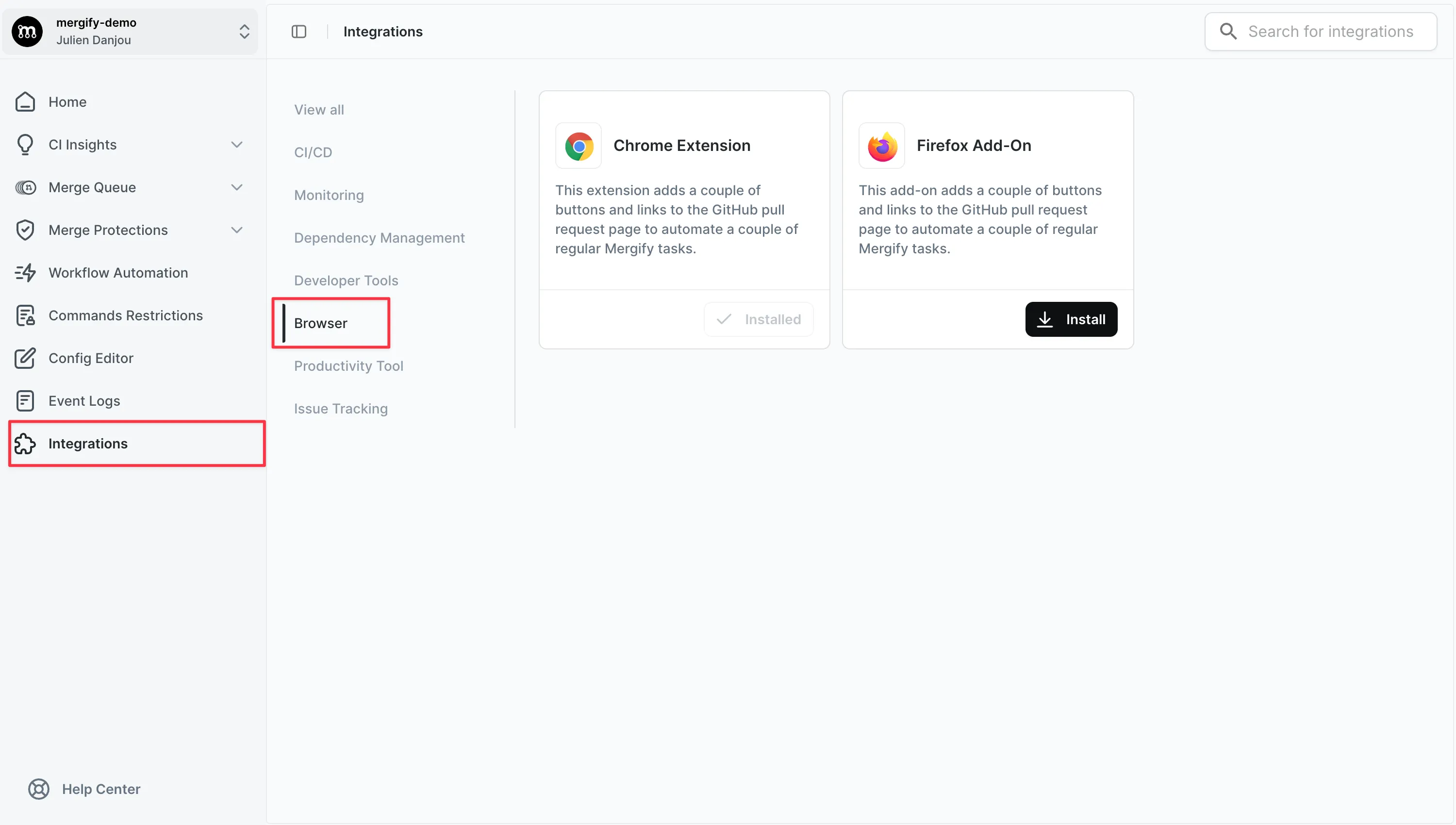
Section titled Locate the Official Download LinksThe dashboard keeps the canonical links to the Chrome Web Store and Firefox Add-ons listing so you always grab the signed builds.
- Sign in to the Mergify dashboard.
- Open
Settings → Browser Extensionsin the left navigation. - Pick Add to Chrome or Add to Firefox.
Install on Chrome or Firefox
Section titled Install on Chrome or FirefoxChrome
Section titled Chrome- Click Add to Chrome from the dashboard page.
- Confirm the permissions in the Chrome Web Store dialog.
Firefox
Section titled Firefox- Click Add to Firefox from the dashboard page.
- Approve the requested permissions in the Firefox Add-ons prompt.
Merge Queue Controls
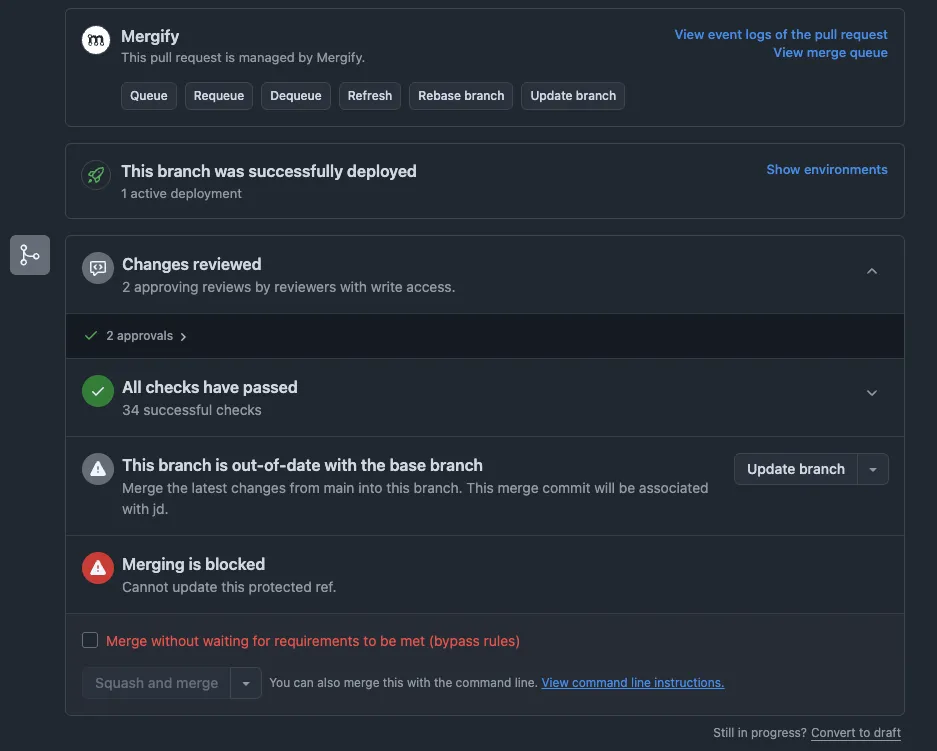
Section titled Merge Queue ControlsAfter installation, reload any pull request on GitHub. A Mergify toolbar appears near the GitHub merge box and displays queue-specific controls:
-
Queue places the pull request into the selected merge queue with one click.
-
Dequeue (available when the pull request is already in the queue) removes it without typing slash commands.
Stacks Panel
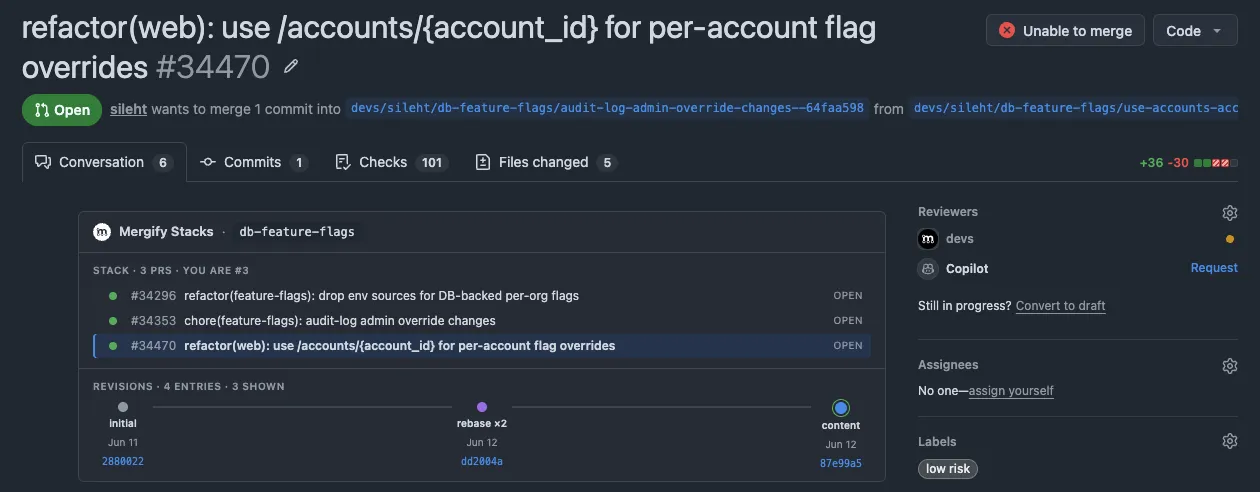
Section titled Stacks PanelFor repositories using Stacks, the extension renders the Mergify Stacks panel inside the pull request. It shows the full chain of stacked PRs, highlights where the current PR sits, and includes the revision-history timeline so you can see how each commit evolved across pushes without leaving GitHub.
Was this page helpful?
Thanks for your feedback!